If your browser keeps opening on its own with websites like thenewpaedia.com, it is quite likely that you have a trojan/backdoor program nissan.exe.
This exe resides in your recycle-bin. It makes entries in the system registry so it gets loaded everytime someone logs in. The exe remains in memory all the time and detects any registry modification on a key and writes back its own values.
First let's see where the exe resides. It probably resides in a path like "C:\RECYCLER\S-1-5-21-3028898713-0813311981-684376638-1852\nissan.exe".
Open a command-prompt,
C:\>
C:\>cd \
C:\>cd "Recycler"
C:\>dir /a hsr *.*
You should now see an entry for nissan.exe. This exe has to be removed. Right now, it will not be possible as this exe is already loaded in memory.
Now lets see where in the registry the entry exists for loading the exe:
Open regedit.exe
Navigate to "HKEY_LOCAL_MACHINE\SOFTWARE\Microsoft\WindowsNT\CurrentVersion\Winlogon"
Here you should see an entry named 'Taskman' having a value like "C:\RECYCLER\S-1-5-21-3028898713-0813311981-684376638-1852\nissan.exe".
We need to somehow get this entry deleted.
We cannot delete it right now as the nissan.exe will detect the 'delete' and will immediately write back the value.
How to get rid of this:
1. Create a user on the system who is not an Administrator
2. Log off from any account which may have Admin rights.
3. Log in as a regular (non-admin user).
4. Navigate to Windows\System32 folder and do a RunAs->Administrator on
- Regedt32.exe
- Cmd.exe
- TaskMgr.exe
5. Switch to TaskMgr instance which you started in Step 4. Kill all instances of
Explorer.exe
6. Now switch to Regedit instance and search for Nissan.exe and remove all values where it shows up. Do a find for 'nissan.exe' a few times just to make sure.
7. Switch to command prompt instance and del all entries of nissan.exe by running
C:\>
C:\>cd \
C:\>cd "Recycler"
C:\>dir /a hsr *.*
This will display exactly where nissan.exe is for e.g.
"C:\RECYCLER\S-1-5-21-3028898713-0813311981-684376638-1852\nissan.exe".
Now to delete the entries:
C:\>attrib -hsr "C:\RECYCLER\S-1-5-21-3028898713-0813311981-684376638-1852\nissan.exe"
C:\>del "C:\RECYCLER\S-1-5-21-3028898713-0813311981-684376638-1852\nissan.exe"
Do a dir nissan.exe and check if you missed out any entry.
By now all entries which launch the exe should have been removed.
I have a suspicion that USB drives get affected and when such 'affected' drives auto-run, the system gets infected. I would therefore recommend that you disable AUTORUN on all drives. Follow the instructions in the link:
Disable autorun
Showing posts with label Windows. Show all posts
Showing posts with label Windows. Show all posts
Tuesday, December 22, 2009

Wednesday, May 13, 2009
Horror of installing XP on ASUS M3N78-EM
After trying to get comfortable with Vista x64 on my new machine (ASUS M3N78-EM, Phenom Triple Core, 4 GB RAM), I decided that it's just not gonna happen. I couldn't connect my Sony HandyCam as drivers were not present, my plain old HP Deskjet 64bit drivers weren't working..basically the whole experience was pretty miserable.
Anyway, decided that XP 32bit is still the way to go. Installed slipstreamed version of XP SP3. Everthing worked except ... THE SOUND! Searched google and found lots of forums where people had similar problems with the RealTek Hi definition audio drivers. I tried ALL solutions I came across including installing XP UAA drivers (available with HP), installing latest drivers from ASUS for my MOBO, drivers from RealTek, nothing worked. Finally there was a post which suggested installing only SP2 of XP and then installing the Realtek Drivers and guess what? THIS WORKED!
Hope this helps anyone else having similar problems.
Anyway, decided that XP 32bit is still the way to go. Installed slipstreamed version of XP SP3. Everthing worked except ... THE SOUND! Searched google and found lots of forums where people had similar problems with the RealTek Hi definition audio drivers. I tried ALL solutions I came across including installing XP UAA drivers (available with HP), installing latest drivers from ASUS for my MOBO, drivers from RealTek, nothing worked. Finally there was a post which suggested installing only SP2 of XP and then installing the Realtek Drivers and guess what? THIS WORKED!
Hope this helps anyone else having similar problems.
Saturday, December 13, 2008
Setting up a wireless network with DLink DER 300 and Airtel broadband
Setting up home networks can be either a total pleasure or a total pain; there are no in-betweens.
Here is an east step by step instruction so you have a ‘total pleasure’able experience.
I am assuming:
The Airtel DSL router has it’s IP set to 192.168.1.1
The DLINK router’s IP is set to 192.168.0.1
Step1:
While still connected to the airtel DSL directly, log into the Airtel DSL router’s administration website using your favorite browser: http://192.168.1.1
- Enter the user-id and password. The default one is ‘admin’ for login and ‘password’ for password.
- Now click the ‘LAN’ link on the left side of the web-page.
- Select the ‘Disable DHCP Server’ as shown below:
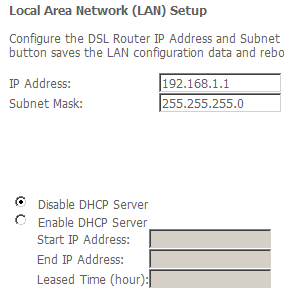
Click Save.
Step 2:
Remove the network cable which connects the Airtel DSL router to your PC from your PC and connect it to the socket marked ‘Internet’ on the DLink router.
Step 3:
Connect your PC to one of the LAN ports of the DLink router using the supplied LAN cable (supplied with the DLink router).
Bring up the Command Prompt in Windows by typing cmd in the Programs…Run menu. Now type: ping 192.168.0.1
Your screen should look something like this:
C:\Documents and Settings\Siddharth.PIXIE.000>ping 192.168.0.1
Reply from 192.168.0.1: bytes=32 time=20ms TTL=64
Reply from 192.168.0.1: bytes=32 time=20ms TTL=64
This means that your DLink router is connect properly to the PC.
Step 4:
Now to setup the PC’s network properties:
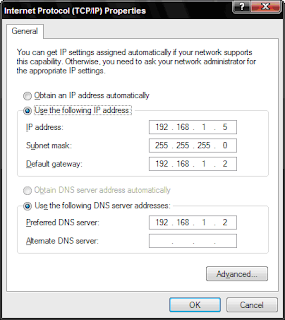
You can specify an IP address starting from 192.168.1.3 to 192.168.1.255.
Just make sure you don’t give 192.168.1.1 or 192.168.1.2 as these will be used by the routers.
Step 5:
Configure the DLink router Open the following URL in your favorite browser: http://192.168.0.1
Enter the user name as admin. The default password is blank so just leave it empty.
Disable DHCP:
In the next screen, click the “LAN Setup” from the left side of the website. I usually disable DHCP so that is what I am going to suggest here. In the “Enable DHCP Server” checkbox is checked, uncheck it.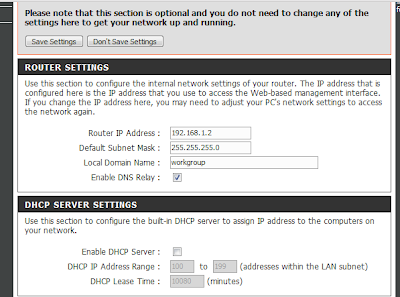
Here is an east step by step instruction so you have a ‘total pleasure’able experience.
I am assuming:
The Airtel DSL router has it’s IP set to 192.168.1.1
The DLINK router’s IP is set to 192.168.0.1
Step1:
While still connected to the airtel DSL directly, log into the Airtel DSL router’s administration website using your favorite browser: http://192.168.1.1
- Enter the user-id and password. The default one is ‘admin’ for login and ‘password’ for password.
- Now click the ‘LAN’ link on the left side of the web-page.
- Select the ‘Disable DHCP Server’ as shown below:

Click Save.
Step 2:
Remove the network cable which connects the Airtel DSL router to your PC from your PC and connect it to the socket marked ‘Internet’ on the DLink router.
Step 3:
Connect your PC to one of the LAN ports of the DLink router using the supplied LAN cable (supplied with the DLink router).
Bring up the Command Prompt in Windows by typing cmd in the Programs…Run menu. Now type:
Your screen should look something like this:
C:\Documents and Settings\Siddharth.PIXIE.000>ping 192.168.0.1
Reply from 192.168.0.1: bytes=32 time=20ms TTL=64
Reply from 192.168.0.1: bytes=32 time=20ms TTL=64
This means that your DLink router is connect properly to the PC.
Step 4:
Now to setup the PC’s network properties:

You can specify an IP address starting from 192.168.1.3 to 192.168.1.255.
Just make sure you don’t give 192.168.1.1 or 192.168.1.2 as these will be used by the routers.
Step 5:
Configure the DLink router Open the following URL in your favorite browser: http://192.168.0.1
Enter the user name as admin. The default password is blank so just leave it empty.
Disable DHCP:
In the next screen, click the “LAN Setup” from the left side of the website. I usually disable DHCP so that is what I am going to suggest here. In the “Enable DHCP Server” checkbox is checked, uncheck it.
In the Router settings section specify the following details:

Click ‘Save Settings’.
Internet connection:
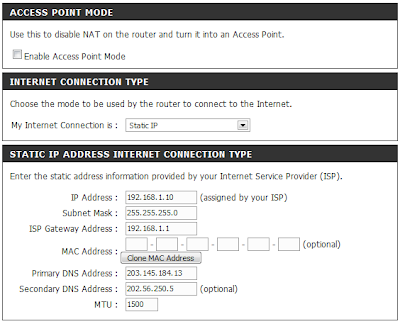
Click the “Internet Setup” link from the left side of the web-page.
Click the “Manual Internet Connection Setup” button.
In the next screen, set the ‘My Internet Connection is’ as ‘Static IP’. The properties should look like this:

Click ‘Save Settings’.

Wednesday, August 6, 2008
Set of useful command line utilities
Fresh from the factory, a set of useful command line utilities from your's truly:
 whereis
This program allows you to locate a file on the machine using standard windows module locating logic.
For example if you are looking for a file notepad.exe and it is present in a particular known folder or in the PATH, the program will display where notepad.exe will be located by Windows.
paths
Prints paths which are set in your system.
winver
Prints the Windows version.
Download
whereisThis program allows you to locate a file on the machine using standard windows module locating logic.
For example if you are looking for a file notepad.exe and it is present in a particular known folder or in the PATH, the program will display where notepad.exe will be located by Windows.
paths
Prints paths which are set in your system.
winver
Prints the Windows version.
Download
Sunday, May 13, 2007
CSV Reader Quick and Dirty
Well, this program like many others was developed by me, for me.
I needed a better utility than notepad to view my log files which
are in CSV format. What better way to spend a weekend than developing
a new utility?
The CSV format may look simple but it can get pretty complicated if
you take into account "all" capabilities of CSV format. If you don't
believe me take a look at this:
http://www.shaftek.org/publications/drafts/mime-csv/draft-shafranovich-mime-csv-02.html
Anyway, I didn't really need a CSV reader which supports the full CSV
specification. I just needed something which can read "my" log files!
As it turned out, many of the data-exports and log files generated by
other applicatoin were also read successfully by CSV Reader.
This was reason enough for me to believe that this little utility might
be useful to others and this is why I am making it available on the www.
Here's a screenshot:

MD5 Hash of Executable: E9D023ECEB07A8AF421F155CCD6224BF
MD5 Hash of ZIP: 63CB43CF9AF08CFA0629540B96E175F8
Download It!
I needed a better utility than notepad to view my log files which
are in CSV format. What better way to spend a weekend than developing
a new utility?
The CSV format may look simple but it can get pretty complicated if
you take into account "all" capabilities of CSV format. If you don't
believe me take a look at this:
http://www.shaftek.org/publications/drafts/mime-csv/draft-shafranovich-mime-csv-02.html
Anyway, I didn't really need a CSV reader which supports the full CSV
specification. I just needed something which can read "my" log files!
As it turned out, many of the data-exports and log files generated by
other applicatoin were also read successfully by CSV Reader.
This was reason enough for me to believe that this little utility might
be useful to others and this is why I am making it available on the www.
Here's a screenshot:
MD5 Hash of Executable: E9D023ECEB07A8AF421F155CCD6224BF
MD5 Hash of ZIP: 63CB43CF9AF08CFA0629540B96E175F8
Download It!
Sunday, May 6, 2007
Version 1.1 of Net Use
Just 2 days since I posted the "NetUse" utility and there's already a new version!
Improvements:
- Old "net use" connections are remembered so that when you want to connect to 'that server' you never seem to remember, its listed in the 'New Connection' dialog along with the login id you had used for it. Passwords are not remembered so you will need to put in the password again.
Download It
MD5 Hash of Setup: 875FFDC77AA32242748BDA7FD0A3D734
Thanks to Harsha for giving the idea.
Improvements:
- Old "net use" connections are remembered so that when you want to connect to 'that server' you never seem to remember, its listed in the 'New Connection' dialog along with the login id you had used for it. Passwords are not remembered so you will need to put in the password again.
Download It
MD5 Hash of Setup: 875FFDC77AA32242748BDA7FD0A3D734
Thanks to Harsha for giving the idea.
Friday, April 27, 2007
GUI version of Net Use
Here's a GUI version of the useful "net use" command.
You can create net use connections, delete existing connections, view list of existing connections and you can also create Drive Mappings.
Screenshot:

Size : 1.3 MB
MD5 Hash of package (setup.exe): F25BBB701DB8E84AA532AEFC59B6E78A
Download It!
Hope you like. Mail any comments/bugs to siddharth_b@yahoo.com
You can create net use connections, delete existing connections, view list of existing connections and you can also create Drive Mappings.
Screenshot:
Size : 1.3 MB
MD5 Hash of package (setup.exe): F25BBB701DB8E84AA532AEFC59B6E78A
Download It!
Hope you like. Mail any comments/bugs to siddharth_b@yahoo.com
Wednesday, April 18, 2007
It's a Timing Thing
Here's a small program I quickly whipped up. It shuts down Windows at a specified date and time. Its written in C++, you don't require .NET or any other runtimes.
Screenshot:

Download size: 156 KB
MD5 Hash of ZIP: 508FBAFDD04C72057EAB7F350DF22EE0
Download It
Screenshot:
Download size: 156 KB
MD5 Hash of ZIP: 508FBAFDD04C72057EAB7F350DF22EE0
Download It
Sunday, April 15, 2007
Service Removal Utility
Here's a utility by your's truly which will remove Windows Services from your computers. Its written in C++, you don't require .NET or any other runtimes.

Download Size: 109 KB
MD5 Hash of EXE: 36ca0af19cb9bda78bd39a956095029b
Download Now
Hope you liked it.

Download Size: 109 KB
MD5 Hash of EXE: 36ca0af19cb9bda78bd39a956095029b
Download Now
Hope you liked it.
Subscribe to:
Posts (Atom)